
Connecting the Gateway to one PLC
In this section we will go through setting up AWS Greengrass and Lambdas running on the industrial gateway to communicate with the PLC via OPC-UA.
First go back to the browser tab that has the AWS console and from the Services drop down menu select IoT Core. If this is the first time you have been into the IoT Core service, click Get started. From the left-hand menu click “Greengrass” and select “Groups”:
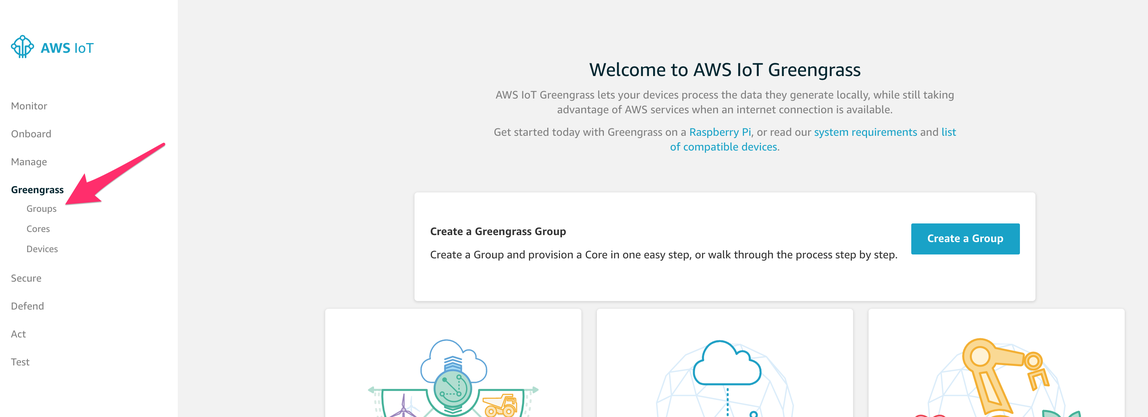
The CloudFormation template has automatically configured a Greengrass group. There are various ways for creating a Greengrass group and it is assumed here that the participant is familiar with this basic process. Further information on how to create a Greengrass group in an industrial IoT scenario similar to ours is here.
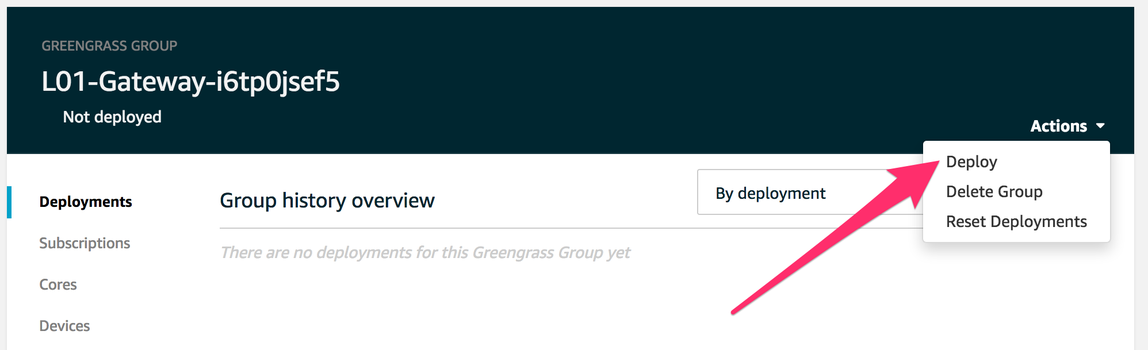
We will work on the L01 gateway for the first production line, select the Greengrass group with the name starting with “L01-Gateway”. In the top-left corner of the screen, the status of the Greengrass Group will show “Not deployed”. As there is already a basic configuration in place, we can simply deploy the configuration to check if all steps so far have been executed properly.
Click “Action” from the top right of the window and from the menu that drops down click “Deploy”.
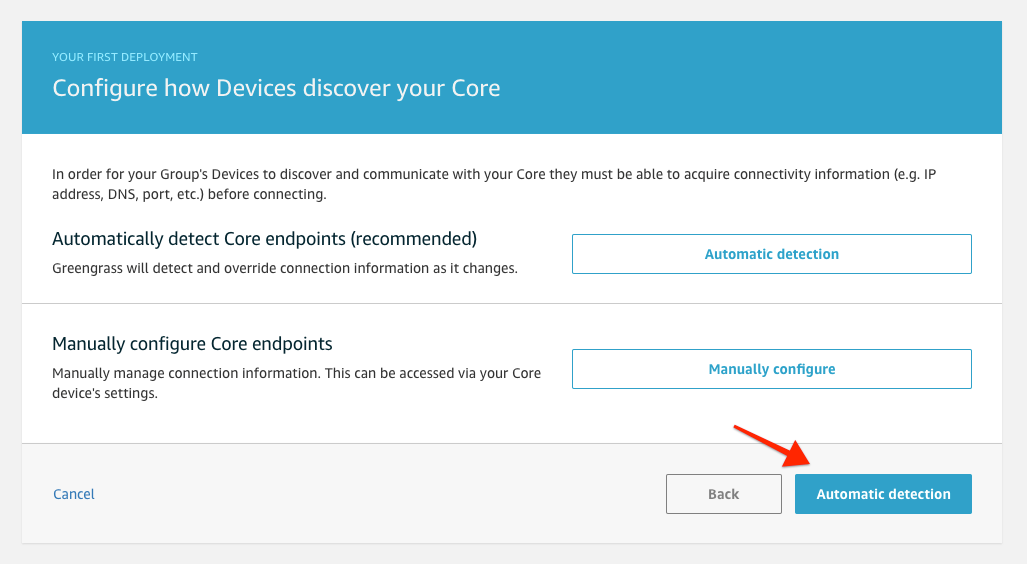
In the screen that pops up, select “Automatic detection" and wait for the deployment to complete.
After at most 30 seconds, the status of the Greengrass group should switch from “pending” to "Successfully completed".
Note: If it does not, the most likely reason is that the Greengrass Service did not start properly. Revisit the previous section about installation and configuration of Greengrass in this case.
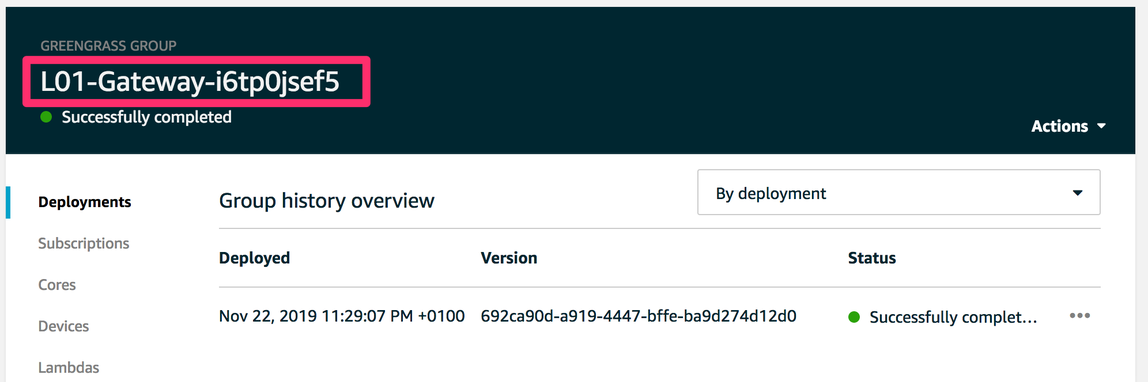
You have now successfully deployed the configuration provided by the CloudFormation template to the Industrial Gateway for the first production line. Let’s explore what this configuration has done, next.
Exploring the first deployment
In this workshop we will use a Lambda function running in Greengrass on the Industrial Gateway to connect to PLC via OPC-UA so that we can ingest the data into the data lake.
Clicking on the section “Lambdas” on the left-hand side of the screen will open a list of Lambdas that have been deployed by CloudFormation.
The configuration of the Lambda may be explored by clicking “...“ and then ”Edit configuration” as shown in the screenshot below.
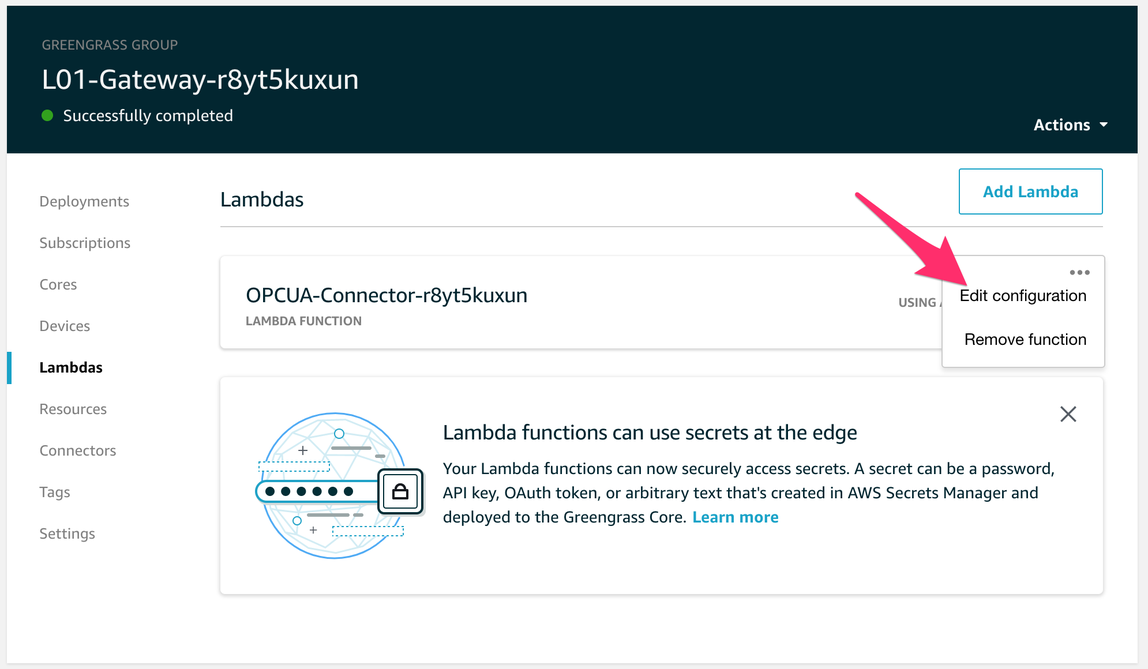
Besides some additional information, the next screen show the core configuration of this lambda and one of the key things to note here is that this is a long-running lambda as indicated by the Lambda life cycle which is set to “Make this function long-lived and keep it running indefinitely”. This means, contrary to AWS Lambdas running in an AWS region, this lambda runs continuously on the Industrial Gateway.
If you scroll to the bottom of the screen you can also see a set of environment variables that are used to customise the lambda. One of the variables is ENDPOINTS and has a value which is the IP address and protocol (OPC-UA) of the PLC that it should connect to. Make sure that the IP address is the same as the IP address of the PLC you connected to when exploring the machine data earlier.
opc.tcp://10.1.1.1:4840
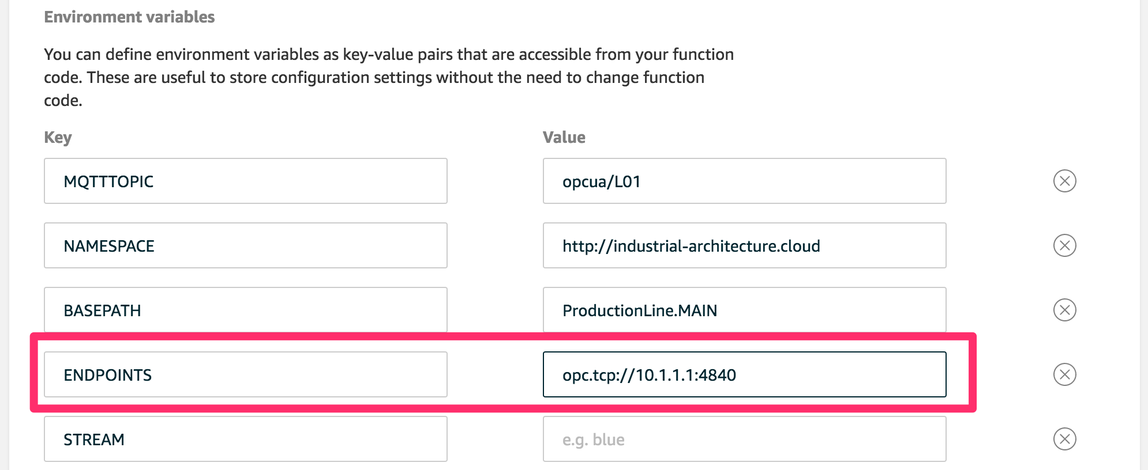
The lambda function is pre configured to communicate with the first station PLC and will translate the OPC-UA data stream to an internal MQTT stream in Greengrass.
To close the Lambda configuration window, click “Cancel” at the bottom of the screen to return to the Greengrass group screen.
There are two ways to pass messages from AWS IoT Greengrass to the cloud. The fast and bi-directional way is MQTT which we will have a look at now. Later we will explore a batch/streaming mode.
AWS IoT uses subscriptions to control which messages are moved between devices and the cloud. Click the back arrow (grey box on the top left) and then click on “Subscriptions” for the Greengrass group.
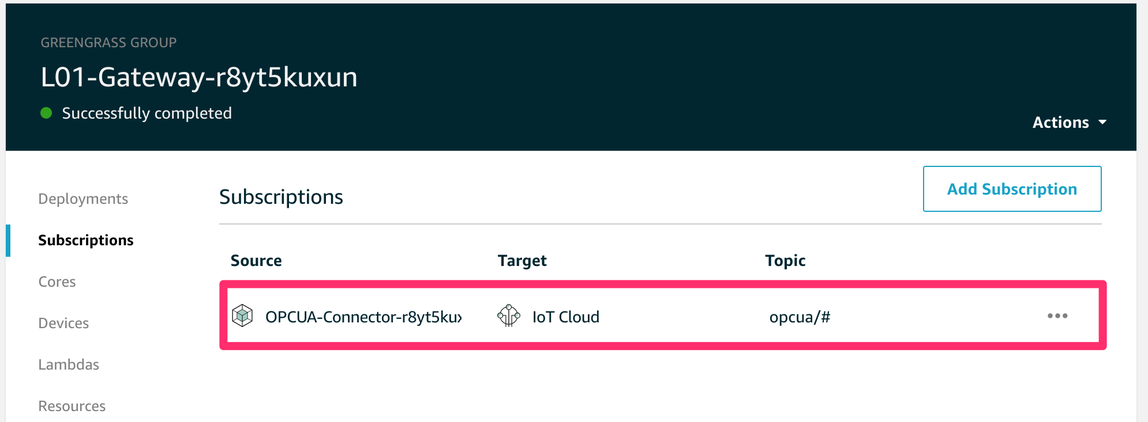
This subscription indicates that messages published by the Lambda whose name starts with “OPCUA-Connector” are delivered to AWS IoT Core if the topic starts with “opcua/” (the “#” is the topic name wildcard character). Let’s check which messages are currently being delivered by this Lambda by navigating back to the IoT Core main screen using the back arrow.
The AWS IoT Core Test Tool
To explore what data the deployed Lambda is already sending to AWS IoT Core using MQTT, we will use the test tool of AWS IoT. To open it, click “Test” on the left-hand menu of AWS IoT Core as shown below.
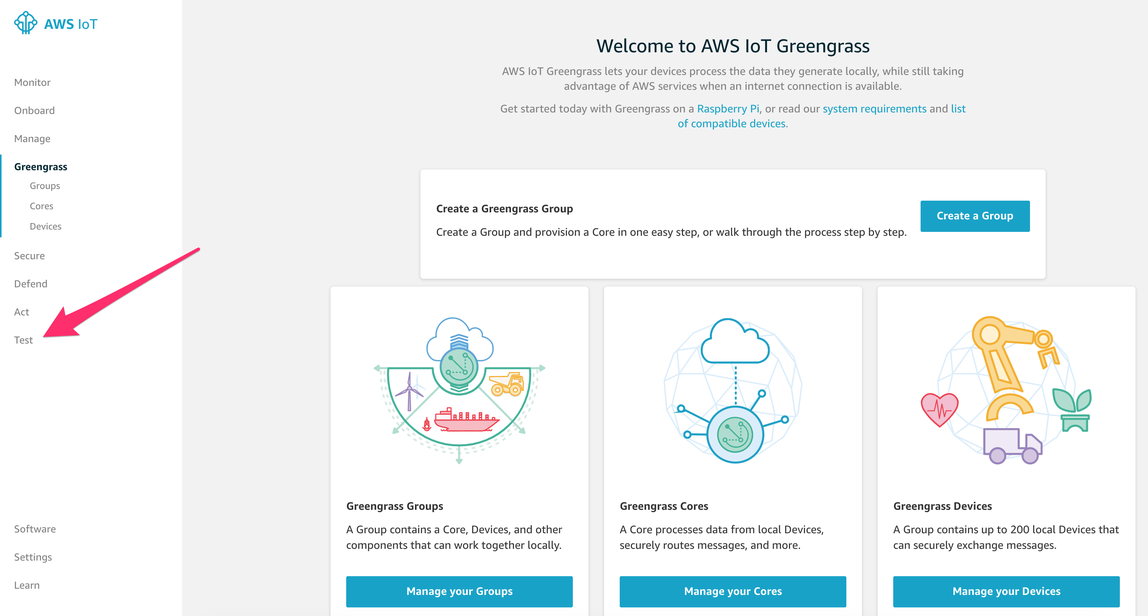
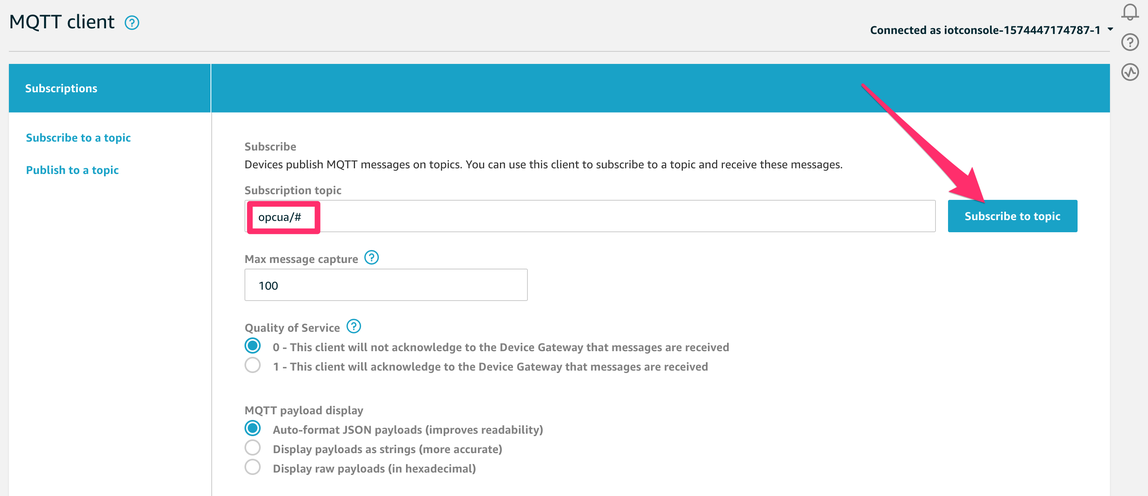
This tool allows receiving and sending MQTT messages through IoT Core. To see all messages currently received by AWS IoT on any topic starting with “opcua/”, enter “opcua/#” in the field “Subscription topic” and click the button “Subscribe to topic” on the right.
As you can see, IoT Core is receiving messages on the topic “opcua/L01/S01” similar to the following:
{
  "line": "L01",
  "station": "S01",
  "state": "EXECUTE",
  "dt": "2019-11-25T21:25:11.773678"
}
This means, the OPCUA connector lambda is currently sending the value of the State variable from the PLC S01 in line L01 to AWS IoT Core using MQTT.

